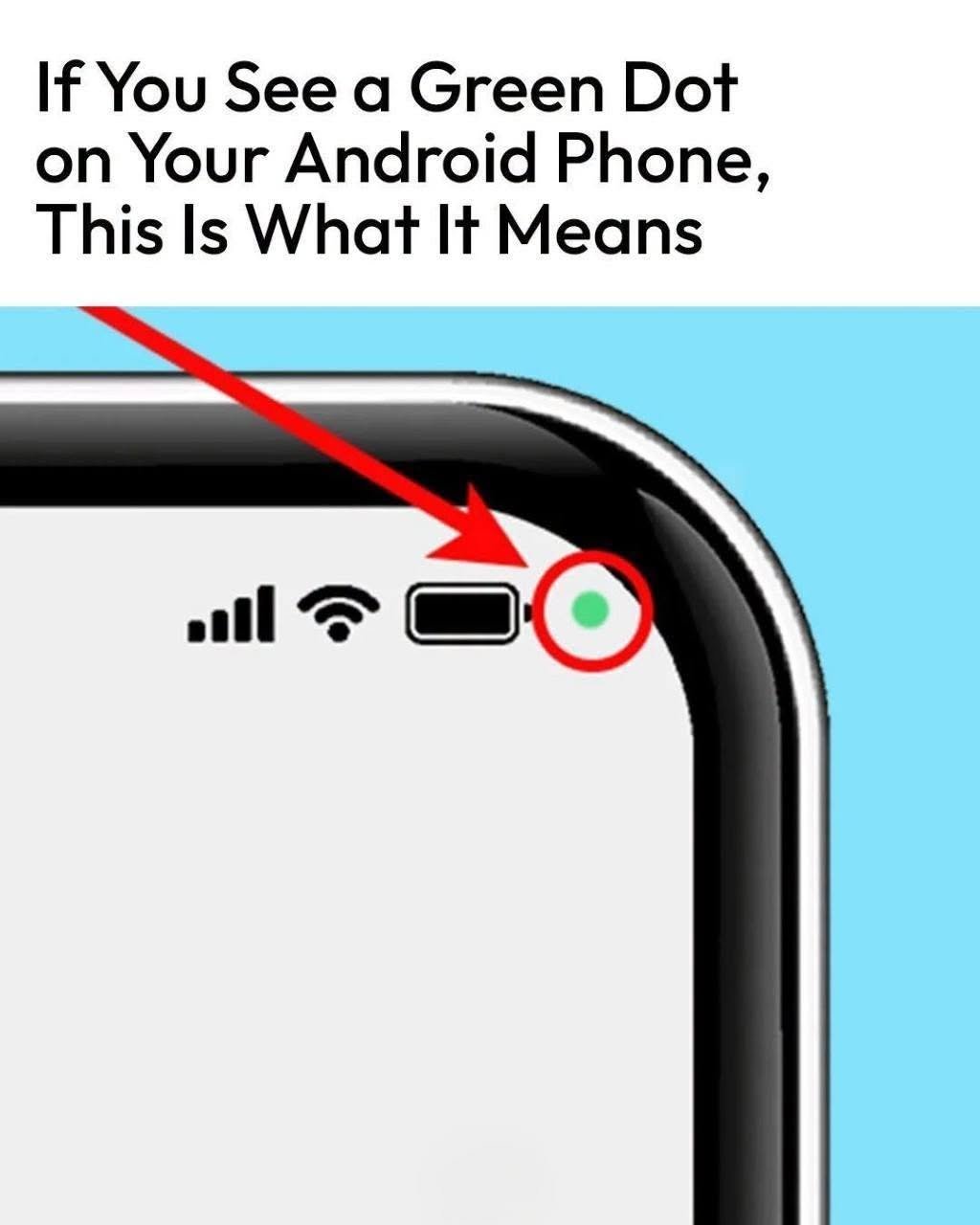
Do You See a Green Dot on Your Android Phone? Here’s What It Means
If a small green dot suddenly appears near the top of your Android phone’s screen, don’t panic. In most cases, it isn’t a sign that your phone has been hacked.
The green indicator is a privacy feature designed to tell you when an app is accessing certain sensitive functions—most commonly your camera or microphone.
Understanding what it means can help you recognize normal activity and spot something that deserves further investigation.
1. The Green Dot Usually Means Your Camera or Microphone Is Being Used
On many recent Android phones, a green indicator appears when an app is actively using the camera or microphone.
For example, you might see it when:
- You’re making a video call.
- You’re recording a video.
- You’re taking a photograph.
- You’re recording a voice message.
- An app is using the microphone during a call.
- A voice assistant is listening for an interaction.
The exact appearance and behavior can vary depending on your Android version and phone manufacturer.
The important point is that the indicator is intended to make sensitive access visible to you.
2. It Doesn’t Automatically Mean Someone Is Spying on You
Seeing the green dot can be alarming, especially if you weren’t expecting it.
But the dot itself isn’t evidence that somebody is secretly watching or listening to you.
There are many legitimate reasons an app might temporarily access the camera or microphone.
For example, you might open a messaging application and use its camera function. The indicator can appear because the app is doing exactly what you asked it to do.
The useful question isn’t simply:
“Why is there a green dot?”
It’s:
“Which app is accessing my camera or microphone right now?”
3. Android Can Tell You Which App Is Using It
If the indicator appears unexpectedly, try swiping down from the top of your screen to open the notification or Quick Settings area.
On supported Android devices, tapping the privacy indicator can show which app recently accessed the camera or microphone.
The precise steps can differ between Samsung, Google Pixel, Xiaomi, Oppo, Vivo, and other Android phones.
Look for information related to camera or microphone access.
If the listed app is one you recognize and were just using, there’s probably nothing unusual happening.
4. Check Your App Permissions
If you don’t recognize the app, investigate its permissions.
Open your phone’s Settings and look for:
Privacy → Permission Manager → Camera or Microphone
The wording can vary by manufacturer and Android version.
You’ll generally be able to see which apps have permission to access these functions.
Ask yourself whether each app actually needs that access.
For example, a video-chat application may reasonably need camera and microphone access.
A simple calculator probably doesn’t need either one.
5. You Can Remove Unnecessary Permissions
If an application doesn’t need your microphone or camera, you can usually change its permission.
Depending on your Android version, you may be able to choose options such as:
- Allow only while using the app
- Ask every time
- Don’t allow
Using the most restrictive permission that still lets the app perform its intended function is a good privacy habit.
Remember, however, that removing a permission can cause an app feature to stop working.
6. Pay Attention If the Indicator Appears When You Aren’t Using Those Features
An occasional green dot isn’t necessarily concerning.
But if the microphone or camera indicator repeatedly appears when you’re not using an app that should need it, investigate.
Check:
- Which app is accessing the sensor
- When it accessed it
- What permissions it has
- Whether the app recently updated
- Whether you actually need the app installed
If you find an unfamiliar application with unnecessary camera or microphone permissions, revoke those permissions and consider uninstalling the app.
7. Keep Android and Your Apps Updated
Security updates aren’t just about adding new features.
They can also address vulnerabilities that attackers might exploit.
Keep your phone’s operating system and apps updated through trusted sources.
Avoid installing applications from unknown websites simply because they promise free versions of paid apps, extra features, or modified versions of popular applications.
Unofficial applications can carry additional privacy and security risks.
8. Don’t Ignore Other Warning Signs
A green dot by itself isn’t proof of malware.
But if it appears alongside other unusual behavior, take a closer look.
For example:
- Unknown apps appear on your phone.
- Battery usage suddenly becomes unusual.
- Mobile data consumption increases unexpectedly.
- Your phone repeatedly displays unfamiliar pop-ups.
- Settings change without your involvement.
- Accounts show unfamiliar login activity.
- You receive security warnings you don’t recognize.
These signs don’t automatically prove that your phone has been compromised, either—but together they justify checking your device more carefully.
9. Be Careful With Camera and Microphone Permissions
Before granting an app access to your microphone or camera, consider whether the permission makes sense.
Ask:
Does this app actually need my microphone?
Does it need my camera?
Would the app still be useful without this permission?
A flashlight application, for example, generally has no obvious reason to need access to your microphone.
Being selective with permissions reduces unnecessary access to sensitive sensors.
10. The Green Dot Is Actually Designed to Protect You
The most important thing to understand is that the green indicator is a privacy warning, not a warning that your phone is infected.
It gives you visibility into something that would otherwise happen silently.
Instead of being frightened by the dot, use it as a reminder to check your permissions.
If you’re using a camera app and the indicator appears, that’s expected.
If you’re on a video call and the microphone is active, that’s expected too.
But if an unfamiliar application appears to be accessing your microphone or camera without an obvious reason, investigate.
What If the Green Dot Won’t Go Away?
If the indicator remains visible after you’ve closed the app that was using the camera or microphone, try:
- Closing recently used apps.
- Checking which app has sensor access.
- Restarting the phone.
- Reviewing camera and microphone permissions.
- Updating Android and your apps.
- Removing an unfamiliar or suspicious application if appropriate.
If the problem continues, consult your phone manufacturer’s support resources or a qualified technician.
A Simple Privacy Check You Can Do Today
Take a few minutes to review the applications that have access to your camera and microphone.
You may discover that several apps have permissions you no longer need.
Remove unnecessary permissions and keep only the access required for features you actually use.
It’s also worth reviewing location, contacts, photos, and other sensitive permissions periodically.
The Bottom Line
If you see a green dot on your Android phone, it generally means that an app is currently using—or has recently used—the camera or microphone, depending on your device and Android version.
It doesn’t automatically mean you’re being hacked or watched.
Instead, treat it as a useful privacy signal.
If you know which app is using the sensor and the activity makes sense, there’s usually no reason to worry.
If the indicator appears unexpectedly, check your privacy controls, identify the app, review its permissions, and remove access that isn’t necessary.
Your phone is giving you information about what its apps are doing. The smartest response isn’t panic—it’s knowing how to check.
